
Your Apple ID is the master key to your entire digital life within the Apple ecosystem. It connects your iCloud photos, App Store purchases, i

Your Apple ID is the master key to your entire digital life within the Apple ecosystem. It connects your iCloud photos, App Store purchases, iMessage history, and device backups into one unified account.
When that password gets compromised, forgotten, or simply needs strengthening, knowing how to change your Apple ID password quickly becomes essential. I’ve helped friends and family members navigate this process dozens of times, and the confusion usually stems from one thing: Apple has multiple passwords protecting different aspects of your devices, and mixing them up leads to frustration.
Your Mac login password, for instance, is completely separate from your Apple ID credentials, even though they might be identical. This guide walks you through every method for updating your Apple account password, whether you’re doing it proactively for better security or scrambling to recover access after forgetting your credentials entirely.
The process takes about five minutes when everything goes smoothly, but there are specific steps and potential roadblocks worth knowing about before you start.
Preparing to Update Your Apple Account Password
Before changing anything, a little preparation prevents headaches. The password update process itself is straightforward, but getting locked out of your own account because you rushed through it is surprisingly common. I’ve seen people change their password on one device, forget what they entered, and then spend hours trying to recover access on their other devices.
Start by deciding on your new password before you begin. Strong passwords should include at least eight characters, mixing uppercase and lowercase letters, numbers, and symbols. Write it down somewhere secure, or better yet, save it in a password manager first. The worst time to brainstorm a secure password is when you’re staring at the password field with a timer ticking.
Also consider timing. If you’re about to board a flight or head into an area with spotty internet, wait. You’ll need connectivity to complete the change, and you’ll want to update your other devices immediately afterward to avoid getting locked out of iCloud services.
The Difference Between Mac Login and Apple ID Passwords
This trips people up constantly. Your Mac login password unlocks your computer when you open the lid or wake it from sleep. Your Apple ID password authenticates you with Apple’s servers for iCloud, the App Store, iMessage, FaceTime, and other Apple services.
They can be the same password, and many people set them identically for convenience. But they’re stored and managed separately. Changing one doesn’t automatically change the other.
Here’s the practical difference: if you forget your Mac login password, you’re locked out of that specific computer. If you forget your Apple ID password, you’re locked out of Apple’s cloud services across every device you own. The Mac login is local; the Apple ID is universal.
When you change your Apple ID password, your Mac login remains untouched. You’ll just need to re-enter your new Apple ID credentials when your Mac prompts you for iCloud authentication, which usually happens within a few minutes of the change.
Ensuring Your Trusted Devices Are Nearby
Two-factor authentication is enabled by default on Apple accounts created in recent years, and it’s the most secure way to handle password changes. When you change your password, Apple sends a verification code to your trusted devices, meaning the iPhones, iPads, and Macs already signed into your account.
Keep at least one trusted device within arm’s reach during the process. If you’re changing your password on your iPhone, your iPad or Mac might display the verification prompt. If you’re doing it on your Mac, your iPhone might buzz with the code.
The verification code expires quickly, usually within a few minutes. Having your trusted device nearby means you can enter the code immediately rather than scrambling to find where you left your phone.
One important caveat: if you have Stolen Device Protection enabled, you might need to wait one hour before using Face ID to reset your Apple Account password. This security feature prevents thieves from quickly changing your password if they steal your unlocked phone. It’s a minor inconvenience for legitimate password changes, but it’s protecting you from a much worse scenario.
How to Update Apple Account Password on iPhone or iPad
The iPhone method is what most people use, and it’s the fastest approach when you know your current password. The entire process takes under two minutes once you know where to look.
Accessing Password & Security Settings
Open the Settings app on your iPhone or iPad. Tap your name at the very top of the screen, which is the banner showing your name and Apple ID. This takes you to your Apple ID settings.
From there, tap “Sign-In & Security.” You’ll see options for your email, phone numbers, and password management. Tap “Change Password.”
Your device will prompt you to enter your current device passcode first. This is the six-digit code you use to unlock your iPhone, not your current Apple ID password. Apple uses this as an additional verification step to confirm you’re the device owner.
Entering Your New Credentials
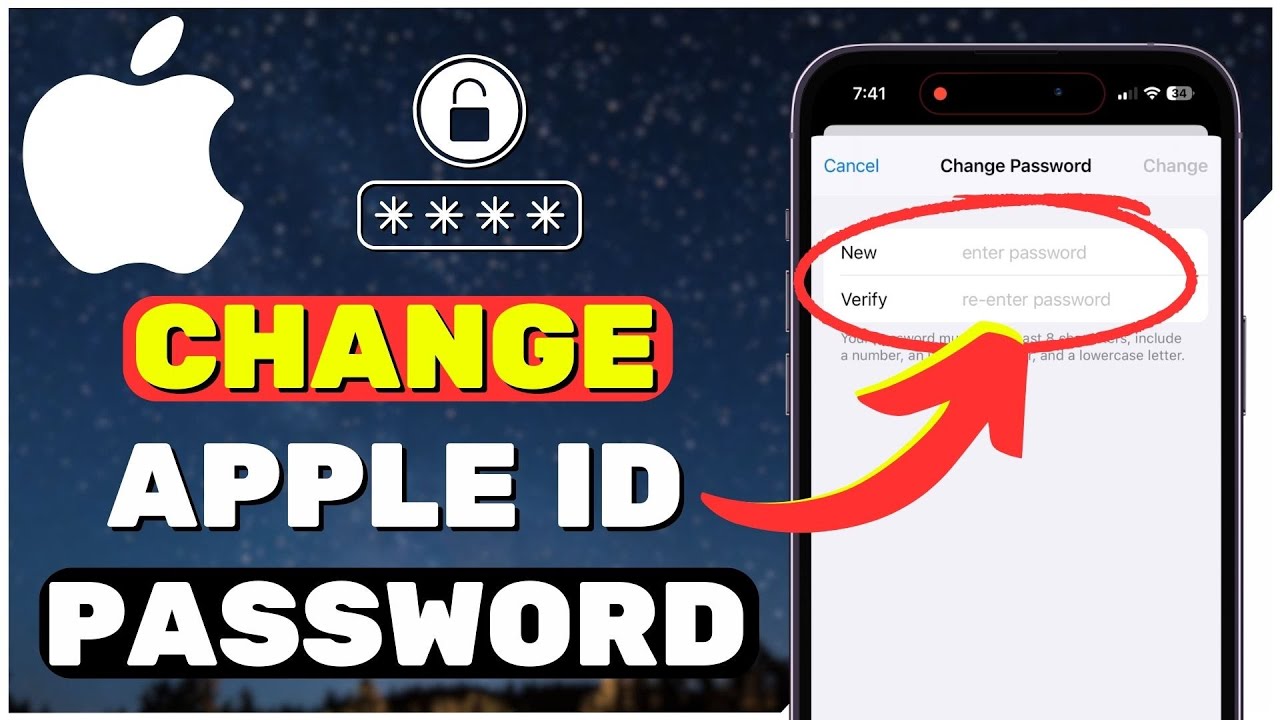
After verifying your passcode, you’ll see fields for your new password. Enter it twice to confirm you’ve typed it correctly. Apple requires at least eight characters with a mix of character types.
Once you tap “Change” in the upper right corner, Apple processes the update. You’ll see a prompt asking whether you want to sign out of other devices. I’ll cover that decision in detail later, but for now, know that you can choose to keep other devices signed in or force them all to re-authenticate.
Apple sends a confirmation email when you make certain updates to your Apple ID, including password changes. Check your inbox to verify the change went through. If you didn’t initiate the change, that email is your warning that someone else accessed your account.
If you manage a child’s account through Family Sharing, you can change their Apple ID password directly from your own device. Go to Settings, tap your name, then Family, select your child’s name, and access their Sign-In & Security settings from there.
Changing Your Apple ID Password on a Mac
The Mac process mirrors the iPhone method but lives in a different location within System Settings. If you primarily use a Mac and don’t have an iPhone handy, this is your path forward.
Navigating System Settings and Apple ID
Click the Apple menu in the upper left corner of your screen and select “System Settings.” In macOS Ventura and later, you’ll see your name and Apple ID at the top of the sidebar. Click it.
Select “Sign-In & Security” from the options. You’ll find “Password” listed here with a “Change Password” option beside it.
Your Mac will ask for your Mac login password first, similar to how the iPhone asks for your device passcode. Enter it, then you’ll see the password change fields.
Type your new password twice, confirm it meets Apple’s requirements, and click “Change Password.” The same post-change options appear: sign out other devices or keep them connected.
One Mac-specific note: if your Mac login password and Apple ID password were identical before, they won’t be anymore after this change. Your Mac login stays the same. Only your Apple ID updates. Some people intentionally keep them synchronized, so remember to change your Mac login separately if that’s your preference.
How to Reset Forgotten Apple ID Credentials
Forgetting your password happens. Maybe you set it years ago and never needed to enter it manually because Face ID handled everything. Maybe you used a password manager that crashed and lost your data. Whatever the reason, Apple provides recovery options.
Using the iforgot.apple.com Recovery Process
Apple’s dedicated recovery site, iforgot.apple.com, handles forgotten credentials. Open any web browser and navigate there. Enter your Apple ID email address to start.
The site walks you through verification steps based on your account’s security setup. If you have two-factor authentication enabled, you’ll need access to a trusted device or trusted phone number. If you’re using older security questions, you’ll answer those instead.
For two-factor accounts, Apple sends a verification code to your trusted devices. Enter that code on the website, and you’ll gain access to reset your password. The new password takes effect immediately across all devices.
If you don’t have access to any trusted devices, you can borrow an Apple device from a friend or visit an Apple Store to use the Apple Support app for password recovery. The app includes a “Reset Password” option under Support Tools that works even on devices not signed into your account.
Account Recovery and Trusted Phone Numbers
When you can’t access trusted devices or don’t remember your security questions, Apple offers Account Recovery. This is the slow path, and it’s intentionally slow to prevent unauthorized access.
Account Recovery verifies your identity through your trusted phone number. Apple sends a text or phone call to confirm you control that number. Depending on your account information and verification factors, there might be a waiting period before Apple grants access.
The waiting period varies. Apple doesn’t publish exact timeframes because they depend on what information you can verify. Some recoveries complete in hours; others take days. During this time, don’t try to speed things up by attempting multiple recovery requests, as that can actually extend the waiting period.
Keep your trusted phone numbers current to avoid this scenario entirely. Go to Settings, tap your name, then Sign-In & Security, and review your trusted phone numbers. Add a backup number if you only have one listed.
Finalizing Security on All Your Apple Devices
Changing your password is step one. Making sure that change propagates correctly across your digital life is step two. Skip this, and you’ll deal with random sign-in prompts and failed syncs for days.
Choosing to Sign Out of All Devices After Password Update
When you change your Apple ID password, Apple asks whether you want to sign out of all devices. This decision matters more than it might seem.
Choosing to sign out everywhere forces every device using your Apple ID to re-authenticate. Your iPhone, iPad, Mac, Apple Watch, Apple TV, and any third-party apps using Sign in with Apple will all prompt for the new password. This is the secure choice if you suspect someone else has access to your account.
Keeping devices signed in is more convenient for routine password updates. Your existing devices continue working normally, and you only enter the new password when something specifically requests it, like downloading a new app or making a purchase.
My recommendation: if you’re changing your password because of a security concern, sign out everywhere. If you’re just doing routine password maintenance, keep devices signed in and save yourself the hassle.
Updating Third-Party Apps and Services
Some apps and services store your Apple ID credentials separately from your device’s system authentication. After a password change, these might need manual updates.
Email apps that connect to your iCloud email address often need re-authentication. If you use Apple’s Mail app, it handles this automatically. Third-party email clients like Outlook or Spark might prompt you to re-enter credentials.
Apps using Sign in with Apple generally continue working because they use tokens rather than your actual password. But if you signed out everywhere, these apps might require you to sign in again.
Music and podcast apps that sync with Apple services, streaming devices logged into your Apple ID, and family members’ devices using Family Sharing might all need attention. Check each one over the next day or two to catch any that didn’t update automatically.
Best Practices for Maintaining Apple ID Security
Password changes shouldn’t be one-time events. Building good security habits protects your account long-term and makes future changes less disruptive.
Change your Apple ID password at least once a year, more frequently if you’ve shared it with anyone or used it on public computers. Set a calendar reminder if you tend to forget.
Never reuse your Apple ID password on other websites or services. If another site gets breached and you’ve used the same password, attackers will try those credentials on Apple accounts. Your Apple ID should have a unique password that exists nowhere else.
Enable two-factor authentication if you haven’t already. It’s the single most effective protection against unauthorized access. Even if someone learns your password, they can’t sign in without also having one of your trusted devices.
Review your trusted devices periodically. Go to Settings, tap your name, and scroll down to see all devices signed into your account. If you see something you don’t recognize, remove it immediately and change your password.
Consider using a password manager to generate and store complex passwords. Apple’s built-in Keychain works well within the Apple ecosystem. Third-party options like 1Password or Bitwarden offer cross-platform support if you also use Windows or Android devices.
Your Apple ID connects everything: your photos, your messages, your purchases, your backups. Treating its security casually puts years of digital memories and hundreds of dollars in app purchases at risk. The five minutes it takes to change your password and verify everything updated correctly is worth the peace of mind.

COMMENTS