
Your Facebook account holds more than status updates and vacation photos. It's connected to your identity, your conversations, your

Your Facebook account holds more than status updates and vacation photos. It’s connected to your identity, your conversations, your memories, and often dozens of other apps and services you’ve authorized over the years. With approximately 300,000 Facebook accounts hacked every day, knowing how to change your Facebook password isn’t just useful knowledge to have tucked away somewhere. It’s a fundamental skill for protecting your digital life.
I’ve helped friends and family recover from compromised accounts more times than I’d like to count. The pattern is almost always the same: they notice strange posts they didn’t write, messages sent to contacts they never intended, or worse, they’re locked out entirely. The frustrating part? A simple password change every few months could have prevented most of these situations.
Whether you’re doing routine maintenance or responding to suspicious activity, the process takes less than five minutes once you know where to look. Here’s exactly how to do it, along with everything you need to know about keeping your account secure afterward.
Why Regularly Updating Your Facebook Password Matters
The statistics paint a sobering picture. Facebook has over 3.07 billion monthly active users worldwide in 2025, making it one of the largest targets for cybercriminals on the planet. That massive user base means hackers have enormous incentive to develop sophisticated methods for breaking into accounts. Your password is the first and often only barrier between your personal information and someone with malicious intent.
Think about what’s actually stored in your Facebook account: private messages spanning years, photos of your family, your workplace information, your birthday, your phone number, and connections to everyone you know. A compromised account doesn’t just affect you. It becomes a launching pad for scam messages sent to your friends and family, phishing attempts that look legitimate because they’re coming from “you,” and potential identity theft.
Enhancing Account Security
Regular password updates work because they limit the window of vulnerability. Even if your credentials were exposed in a data breach you never knew about, changing your password closes that door. A Google study found that 65% of people use the same password for multiple accounts, which means a breach on any site you’ve used could potentially compromise your Facebook login.
The math is simple but scary: if you’ve used similar passwords across ten different services over the past five years, and even one of those services experienced a data breach, your credentials are likely sitting in a database somewhere being sold or shared. Hackers use automated tools to try these stolen credentials across major platforms, and Facebook is always near the top of their list. Changing your password regularly, especially to something unique you haven’t used elsewhere, breaks this chain.
Preventing Unauthorized Access
Here’s something that surprised me when I first learned it: 80% of hacked accounts were accessed using previously exposed login credentials from data breaches. Hackers aren’t necessarily targeting you specifically. They’re running automated attacks using massive lists of stolen usernames and passwords, hoping to find matches.
Unauthorized access often goes undetected for weeks or months. Someone might log into your account, read your messages, and gather information without posting anything suspicious. They could be building a profile for identity theft or waiting for the right moment to strike. Regular password changes, combined with monitoring your active sessions, help you catch and prevent this kind of silent intrusion.
Step 1: Access the Meta Accounts Center
Facebook’s settings have migrated to what Meta calls the Accounts Center, which now manages security settings across Facebook, Instagram, and other Meta services. This centralization actually makes things easier once you know where to find it, but it can be confusing if you’re looking for the old Facebook-specific settings pages.
The Accounts Center is your hub for all things security-related. From here, you can manage passwords, two-factor authentication, login alerts, and connected accounts. Getting there differs slightly between desktop and mobile, so I’ll walk you through both paths.
Locating Settings on Desktop
On your computer, start by logging into Facebook through your web browser. Look at the top right corner of your screen for your profile picture. Click it, and a dropdown menu appears with several options. Select “Settings & privacy,” then click “Settings” from the expanded menu.
From the main Settings page, look for “Accounts Center” in the left sidebar, typically near the top. Click it to enter Meta’s unified settings area. You’ll see options for managing your profile, personal details, and importantly, password and security. This is where all the action happens for changing your password.
Accessing Settings on Mobile Devices
The mobile experience varies slightly between iOS and Android, but the general path is similar. Open the Facebook app and tap the menu icon, which appears as three horizontal lines on Android (usually bottom right) or in the top right on iOS. Scroll down until you find “Settings & privacy,” tap it, then tap “Settings.”
From here, look for “Accounts Center” or “See more in Accounts Center.” Tap it, and you’ll enter the same unified settings area available on desktop. The mobile interface is more compact, so you might need to scroll to find the Password and Security section. One thing I’ve noticed: the mobile version occasionally loads slower than desktop, especially on older phones, so give it a moment if screens seem to hang.
Step 2: Navigate to Password and Security
Once you’re in the Accounts Center, finding the password settings is straightforward. Look for a section labeled “Password and security” or simply “Security.” On desktop, this typically appears in the left-hand navigation menu. On mobile, you might see it as a tappable card or list item.
Click or tap “Password and security” to expand your options. You’ll see several security-related settings here, including where you’re logged in, two-factor authentication, and the option to change your password. This section also shows recent security activity, which is worth reviewing while you’re here. If you see login attempts from locations you don’t recognize, that’s a strong signal you need to change your password immediately and possibly take additional steps to secure your account.
The interface shows your connected Meta accounts, typically Facebook and Instagram if you’ve linked them. You can manage passwords for each account separately or together, depending on your setup. For now, focus on finding the password change option, which should be prominently displayed.
Step 3: Select the Change Password Option
Within the Password and Security section, locate and click “Change password.” Facebook will show you which account you’re changing the password for, so double-check you’ve selected the correct one if you have multiple Meta accounts linked.
Before proceeding, Facebook might ask you to re-enter your current password or verify your identity through another method. This is a security measure to ensure someone who briefly accessed your unlocked phone or computer can’t change your password without knowing the existing one. If you’re prompted for verification, complete it to proceed.
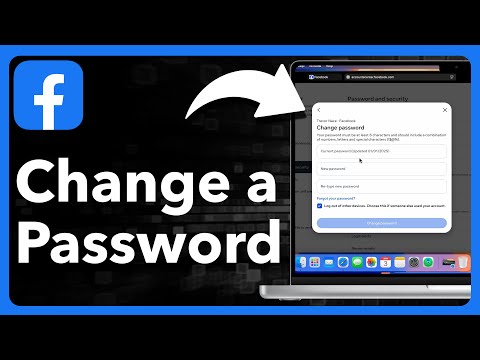
The change password screen presents three fields: your current password, your new password, and a confirmation of your new password. Have your new password ready before you start typing. I recommend using a password manager like 1Password or Bitwarden to generate and store a strong password, which eliminates the need to remember complex strings of characters while ensuring maximum security.
Step 4: Enter Current and New Password Details
Type your current password in the first field. If you’ve forgotten it, don’t worry. There’s a “Forgot password?” link that I’ll cover in a later section. Assuming you know your current password, enter it carefully. Typos here are common and will prevent you from proceeding.
Next, enter your new password. Facebook will show you requirements as you type, typically including minimum length and character variety. Take these seriously. A weak password defeats the entire purpose of this exercise. After entering your new password, type it again in the confirmation field. This double-entry catches typos that could otherwise lock you out of your account.
Creating a Strong, Unique Password
The best passwords are long, random, and unique to each account. Aim for at least 16 characters mixing uppercase letters, lowercase letters, numbers, and symbols. Avoid anything guessable: your name, birthday, pet’s name, “password123,” or keyboard patterns like “qwerty.”
A password manager makes this easy. These tools generate random passwords like “k7#Lm9$pQx2&vN4w” and remember them for you. You only need to remember one master password for the manager itself. If you’re not using a password manager yet, this is an excellent time to start. Both 1Password and Bitwarden offer free or affordable options that work across all your devices.
If you prefer creating passwords yourself, try the passphrase method: string together four or five random words with numbers and symbols between them. Something like “correct-horse-battery-staple” is both memorable and strong, though you’d want to add some numbers and symbols for Facebook’s requirements.
Password Requirements and Best Practices
Facebook requires passwords to be at least six characters, but that’s a bare minimum you should far exceed. Security experts recommend at least 12 to 16 characters for important accounts. Your Facebook password should be completely different from passwords you use anywhere else, especially your email, which is often the recovery method for other accounts.
Avoid common substitutions that hackers know about, like replacing “a” with “@” or “e” with “3.” These tricks don’t add much security because automated cracking tools account for them. True randomness beats clever patterns every time. Also, never include personal information that someone could find on your profile or through social media research.
Set a calendar reminder to update your password every three to six months. This habit, combined with unique passwords and a password manager, dramatically reduces your risk of account compromise.
Step 5: Confirm Changes and Manage Active Sessions
After entering your new password in both fields, click the “Change password” button to confirm. Facebook will process the change and typically show a confirmation message. At this point, your new password is active, and your old password no longer works.
Facebook often presents an option to stay logged in on your current device while logging out everywhere else. This is incredibly useful if you’re changing your password because you suspect unauthorized access. By logging out other sessions, you immediately kick out anyone who might have been using your account.
Reviewing Where You Are Logged In
Before or after changing your password, review your active sessions. In the Password and Security section, look for “Where you’re logged in” or similar wording. This shows every device and location currently accessing your account.
You’ll see device types, approximate locations, and when each session was last active. Legitimate sessions might include your phone, work computer, and home laptop. Anything you don’t recognize, like a login from a city you’ve never visited or a device type you don’t own, indicates potential unauthorized access. This information helps you understand whether your password change is routine maintenance or damage control.
Logging Out of Other Devices
If you see suspicious sessions or simply want a fresh start, log out of all other devices. Facebook provides an option to end individual sessions or all sessions at once. I recommend the nuclear option: log out everywhere, then log back in only on devices you’re actively using.
After logging out other sessions, you’ll need to enter your new password on each device you want to use. This is mildly inconvenient but ensures that only you have access going forward. Any saved passwords on other devices become invalid, and anyone who might have had access is immediately locked out.
What to Do If You Forgot Your Current Password
Forgetting your password happens to everyone. Maybe you’ve been relying on your browser’s saved passwords and genuinely can’t remember what you set, or perhaps it’s been so long since you manually logged in that the password has slipped your mind. Facebook has recovery options specifically for this situation.
The key is having access to the email address or phone number associated with your account. If those are also compromised or inaccessible, recovery becomes significantly more complicated and may require identity verification through uploaded documents.
Using the ‘Forgot Password?’ Link
On the Facebook login page or within the password change flow, click “Forgot password?” or “Forgotten password?” Facebook will ask you to identify your account, typically by entering your email, phone number, or username.
Once Facebook locates your account, you’ll see recovery options based on what contact information you’ve provided. Select your preferred method and proceed. The system is designed to verify you’re the legitimate account owner before allowing a password reset.
Recovery via Email or SMS
If you choose email recovery, Facebook sends a link to your registered email address. Click this link within the time limit, usually a few hours, and you’ll be directed to create a new password. Check your spam folder if the email doesn’t appear in your inbox.
SMS recovery works similarly: Facebook texts a code to your registered phone number. Enter this code on the Facebook site to verify your identity, then create a new password. SMS is generally faster but requires your phone number to be current in your account settings.
If neither option works because you’ve lost access to both your email and phone number, Facebook offers identity verification through uploaded government ID. This process takes longer, sometimes several days, but it’s your fallback when other methods fail.
Additional Security Layers to Consider
Changing your password is essential but shouldn’t be your only security measure. Phishing attacks increased by 47% in the past year, and sophisticated hackers use multiple methods to compromise accounts. Layering your security makes it exponentially harder for anyone to break through.
Think of security like a castle: your password is the main gate, but you also want walls, a moat, and guards watching for intruders. Each additional security measure you enable adds another obstacle that attackers must overcome.
Enabling Two-Factor Authentication (2FA)
Two-factor authentication requires something you know (your password) and something you have (usually your phone) to log in. Even if someone steals your password, they can’t access your account without also having your second factor.
Enable 2FA in the same Password and Security section where you changed your password. Facebook offers several options: authentication apps like Google Authenticator or Authy, SMS codes, or physical security keys. Authentication apps are generally more secure than SMS because they’re not vulnerable to SIM-swapping attacks. Set up 2FA now while you’re already in the security settings. It takes two minutes and dramatically improves your protection.
Setting Up Login Alerts
Login alerts notify you whenever someone accesses your account from an unrecognized device or browser. You’ll receive a notification through Facebook, email, or both, depending on your preferences.
Find this option in your security settings and enable notifications for unrecognized logins. If you ever receive an alert you don’t recognize, you’ll know immediately that someone else has accessed your account. You can then change your password, end that session, and investigate further. These alerts transform you from a passive target into an active defender of your own account.
Keeping Your Account Secure Long-Term
Changing your password today is a great step, but security is an ongoing practice, not a one-time task. Build habits that protect your account continuously. Review your active sessions monthly, update your password quarterly, and stay alert for phishing attempts that try to trick you into revealing your credentials.
Be skeptical of messages asking you to click links or provide login information, even if they appear to come from Facebook. Legitimate security notices from Facebook won’t ask for your password via email or message. When in doubt, navigate directly to Facebook.com rather than clicking any links.
Your Facebook account connects to years of memories and relationships. Protecting it takes minimal effort compared to the massive headache of recovering a compromised account or dealing with identity theft. Take five minutes today to change your password, enable two-factor authentication, and review your security settings. Future you will be grateful.

COMMENTS