
The Importance of Keeping Your Google Maps Address Current Moving to a new place comes with an endless checklist: forwarding mail, updating ban

The Importance of Keeping Your Google Maps Address Current
Moving to a new place comes with an endless checklist: forwarding mail, updating bank accounts, notifying your employer. But there’s one change that affects your daily life more than you might realize, and it often gets overlooked until you’re standing in the wrong neighborhood wondering why your phone sent you there.
Your home address in Google Maps isn’t just a convenience feature. It’s the foundation for how the app calculates commute times, suggests routes, and responds when you tap “Directions to Home” after a long day. If that address points to your old apartment three cities away, you’re not getting accurate traffic predictions, and your saved routines become useless.
For personal use, an outdated address means frustration. For businesses, the stakes climb higher. Inaccurate listings and bad directions stemming from an incorrect address can lead to negative reviews, lost customers, and damaged credibility. When someone searches “near me” and gets sent to your former location, that’s a sale you’ll never recover.
The good news? Changing your home address on Google Maps takes about thirty seconds once you know where to look. The interface has shifted over various app updates, which is why so many people struggle to find the right menu.
Whether you’re using an iPhone, Android device, or desktop browser, the process is straightforward. And if your new place doesn’t have a precise street number yet, like a rural property or new construction, you can drop a pin and save that exact spot as your home.
This guide walks through every method for updating your address, plus solutions for the weird edge cases that trip people up.
How to Update Google Maps Address on iPhone and Android
The mobile app is where most people interact with Google Maps, and it’s also the fastest way to update your home address. The steps are nearly identical whether you’re on iOS or Android, with only minor visual differences between platforms.
Before you start, make sure you’re signed into the Google account you actually use for navigation. If you have multiple accounts, like a personal Gmail and a work account, Google Maps will only save your home address to whichever account is currently active. You can check this by tapping your profile picture in the top right corner of the app.
Step-by-Step Guide for Mobile App Users
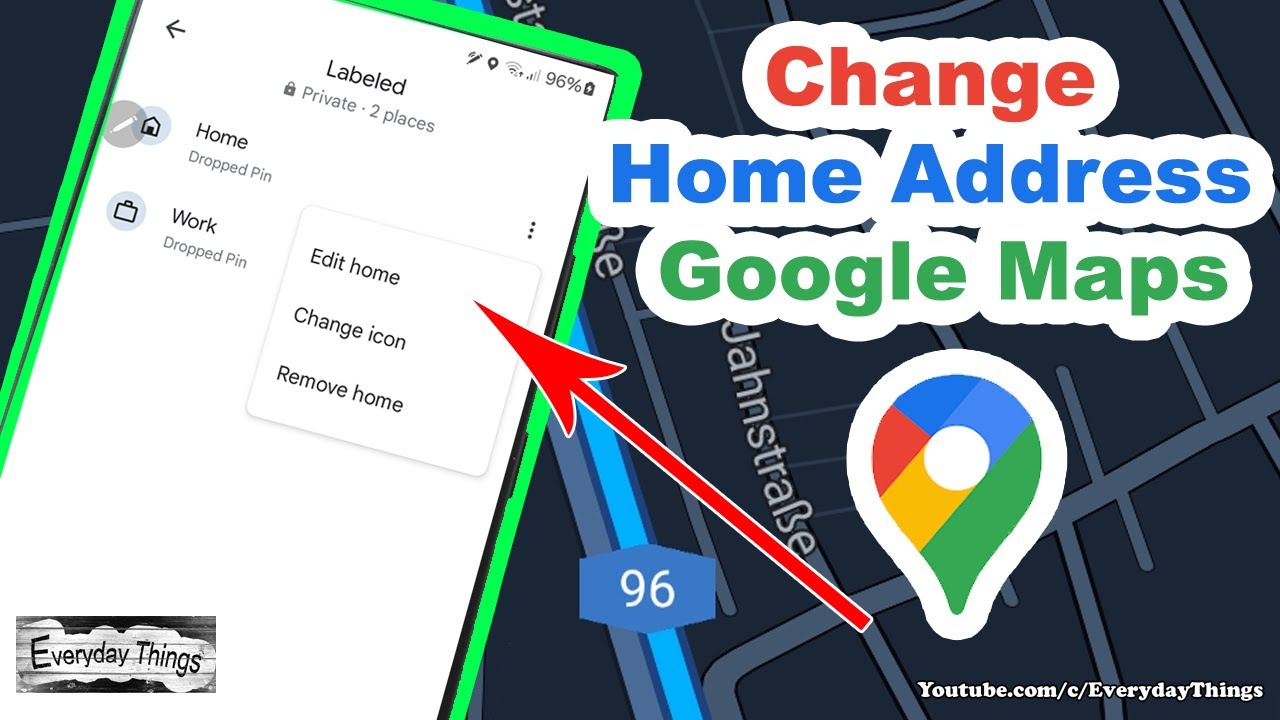
Open Google Maps and tap “Saved” at the bottom of the screen. This takes you to your saved places, which includes everything from restaurants you’ve bookmarked to your labeled locations. Look for the “Labeled” section, which should appear near the top. Tap it to see your current Home and Work addresses.
Select “Home” from the list. If you’ve never set a home address before, you’ll see an option to add one. If there’s already an address saved, tap the three-dot menu or the pencil icon (depending on your app version) to edit it.
Enter your new address in the search field. Google will suggest matches as you type. Select the correct one from the dropdown, confirm the location on the map preview, and save. The entire process takes under a minute.
One detail worth knowing: the mobile app lets you edit your home address through the “Saved” menu, but some older guides reference a different path through Settings. Google has reorganized the app several times, so if instructions you find elsewhere don’t match what you see, the Saved > Labeled route is your most reliable option.
Using the Search Bar to Modify Saved Locations
There’s a faster method if you already know your new address. Tap the search bar at the top of Google Maps and type your new address directly. When the location appears on the map, tap it to open the details panel.
Scroll down slightly and look for “Label” or “Add label.” Tap this option, then select “Home” from the preset choices. Google will ask if you want to replace your existing home address. Confirm, and you’re done.
This approach works well when you’re physically at your new location and want to verify the pin placement matches reality. You can zoom in on the map to make sure Google has positioned your home correctly, which matters more than you’d think for navigation accuracy.
Editing Home and Work Locations via Desktop Browser
Sometimes a larger screen makes tasks easier, especially if you’re managing multiple saved places or need to verify addresses across different Google services. The desktop version of Google Maps offers the same functionality as the mobile app, with a slightly different interface.
Navigate to maps.google.com and sign into your Google account. Click the hamburger menu (three horizontal lines) in the top left corner, then select “Your places.” This opens a panel showing your labeled locations, lists, and visited places.
Click the “Labeled” tab to see your Home and Work addresses. Hover over “Home” and click the pencil icon that appears to edit it. Enter your new address, select the correct match from Google’s suggestions, and click Save.
The desktop interface also lets you see your saved places on a map simultaneously, which helps if you’re organizing multiple locations. You might save your gym, your partner’s workplace, or your kids’ school as labeled places, and the desktop view makes it easier to verify everything is positioned correctly.
One advantage of updating your address through the browser: you can immediately see how the change syncs across Google services. Your new home address will appear in Google Assistant, Google Calendar travel time estimates, and any other Google products tied to your account. Keeping your name, address, and information consistent across all platforms improves how these services work together.
How to Set Home Address Using a Pinned Location
Not every home has a tidy street address that Google recognizes. Rural properties, new construction, apartments in large complexes, and homes accessed by private roads often confuse standard address searches. If you type your address and Google either can’t find it or places the pin in the wrong spot, you’ll need to drop a pin manually.
Dropping a Pin for Addresses Without a Precise Number
Open Google Maps and navigate to your actual location, either by searching for a nearby landmark or by physically being there and letting GPS center the map. Zoom in until you can see individual buildings or plot boundaries.
Press and hold on the exact spot where your home sits. A red pin will drop, and a panel will slide up from the bottom showing “Dropped pin” with the approximate address or coordinates.
Take a moment to verify the pin placement. Drag the map around while keeping the pin centered to fine-tune the position. This matters for navigation accuracy: if the pin sits on the road instead of your driveway, directions might tell future visitors to stop short of your actual entrance.
Saving a Pinned Spot as Your Primary Residence
Once the pin is positioned correctly, tap the information panel at the bottom. Look for “Label” or “Save” options. Select “Label,” then choose “Home” from the list.
If you already have a home address saved, Google will ask whether you want to replace it. Confirm the change, and your dropped pin becomes your new home location. All future “Directions to Home” requests will route to this exact spot.
This method is particularly useful for addresses that technically exist but that Google misplaces. Some apartment complexes span multiple buildings, and Google might default to the leasing office rather than your specific unit. Dropping a pin at your building’s entrance ensures navigation brings you (and your delivery drivers) to the right place.
Managing and Changing Saved Places in Your Google Account
Your home address is just one piece of a larger system. Google Maps lets you save unlimited locations, organize them into lists, and access them across all your devices. Understanding how this system works helps you keep your digital life organized after a move.
Organizing Labeled Places Beyond Home and Work
Beyond Home and Work, you can create custom labels for any location. Your doctor’s office, your favorite hiking trailhead, your parents’ house: anything you visit regularly deserves a label.
To add a custom label, search for or navigate to a location, tap it to open the details panel, and select “Label.” Instead of choosing Home or Work, tap “Add label” and type whatever name makes sense to you. “Gym,” “Dentist,” or “Airport Parking Lot C” all work.
These labeled places appear in your Saved section and can be accessed quickly when getting directions. Type “directions to Gym” in the search bar, and Google knows exactly where to route you.
After moving, audit your saved places. Some might reference locations near your old home that no longer make sense. That coffee shop you visited every morning? Probably not useful if you’ve moved across the country. Cleaning up outdated saves keeps your lists relevant.
Syncing Address Changes Across Google Services
When you update your home address in Google Maps, the change propagates to other Google services automatically. Google Assistant will use the new address when you ask for commute times. Google Calendar will calculate travel time to events based on your updated location.
This synchronization works both directions. If you update your home address through your Google Account settings (account.google.com > Personal info > Addresses), that change will appear in Google Maps. The two systems stay connected.
For business owners, this interconnection matters even more. Accurate address information helps search engines direct customers to the correct location, and consistency across Google’s ecosystem strengthens your local search presence.
How to Delete an Old Home Address in Google Maps
Sometimes you don’t want to replace your home address: you want to remove it entirely. Maybe you’re between residences, value your privacy, or simply don’t want Google tracking this information. Deleting a saved home address is straightforward.
Removing Outdated Locations to Clear Navigation History
Open Google Maps and go to Saved > Labeled. Find your Home address and tap it to open the details. Look for the three-dot menu or edit option, then select “Remove” or “Remove label.”
This deletes the Home label from that address. The location still exists in Google Maps, obviously, but it’s no longer associated with your account as your home.
If you want to clear your location history more thoroughly, visit your Google Account privacy settings. Under “Data & privacy,” you can manage your Location History, which includes everywhere Google has tracked you over time. You can delete specific entries, clear ranges of dates, or turn off location history entirely.
Keep in mind that deleting your home address affects functionality. You won’t be able to tap “Directions to Home” until you set a new address. Google Assistant won’t know where to send you when you say “take me home.” For most people, replacing the address makes more sense than deleting it, but the option exists if you need it.
Troubleshooting Common Google Maps Update Issues
Even simple changes sometimes go sideways. If you’ve followed the steps above and something isn’t working, here are the most common problems and their solutions.
Fixing Location Accuracy and GPS Calibration
If Google Maps shows your location incorrectly, your saved home address might appear to work but actually cause navigation problems. The app relies on GPS, Wi-Fi networks, and cell towers to determine where you are, and sometimes these signals conflict.
On Android, open Settings > Location > Improve accuracy and enable Wi-Fi scanning and Bluetooth scanning. These features help Google triangulate your position more precisely.
On iPhone, go to Settings > Privacy & Security > Location Services and make sure Google Maps has permission set to “While Using” or “Always.” Also check that Location Services itself is enabled at the top of that screen.
If your location still seems off, try the compass calibration trick. Open Google Maps, tap the blue dot showing your location, and select “Calibrate.” Follow the prompts to move your phone in a figure-eight pattern. This recalibrates the magnetometer and often fixes drift issues.
What to Do if Your New Address Isn’t Showing Up
You’ve entered your new address, saved it, and confirmed the change, but Google Maps still shows your old home when you tap “Directions to Home.” This usually comes down to one of three issues.
First, check which Google account is active. If you’re signed into a different account than the one where you made the change, you won’t see your updated address. Tap your profile picture and verify the correct account is selected.
Second, try force-closing the app and reopening it. On iPhone, swipe up from the bottom and swipe the Google Maps preview away. On Android, go to Settings > Apps > Google Maps > Force Stop. Changes sometimes don’t appear until the app fully restarts.
Third, check your internet connection. Google Maps syncs saved places to the cloud, and if you made changes while offline or on a spotty connection, they might not have saved. Open Saved > Labeled and verify your home address shows correctly. If it reverted to the old address, make the change again while connected to reliable Wi-Fi.
For business addresses, the process involves additional verification. Google often requires reverification after an address update, frequently done via a postcard mailed to your new location. This prevents fraudulent address changes and ensures the business actually operates where it claims.
Making Your Address Change Stick
Updating your home address in Google Maps should take less than a minute, but the benefits extend far beyond that brief effort. Accurate commute predictions, reliable navigation, and properly functioning voice commands all depend on Google knowing where you actually live.
If you’ve recently moved, take five minutes to audit all your saved places. Update your home and work addresses, remove locations that no longer make sense, and add new spots you’ll visit regularly. This small investment pays off every time you open the app.
The next time you’re exhausted after a long day and just want to get home, you’ll tap one button and trust that Google sends you to the right place. That’s the whole point of keeping your address current: technology that actually helps instead of adding friction to your life.

COMMENTS